

Download Netscape – Free Secure Windows Browser, Fast Updates & Classic Design
Overview
Netscape is a timeless web browser that brings the nostalgia of early internet days together with modern security standards. Released as a free Windows application, the browser belongs to the “Browsers” category and specifically to the “Web browsers” sub‑category. Published by the original Netscape team, the current stable build is version 9.0.0.6, last updated on May 23 2011.
Despite its vintage roots, Netscape still attracts a solid user base—over 572,000 installations since its inclusion in our catalog and an average of 82 downloads per week. The program is available exclusively in English and runs on Windows 98 SE and all later Windows versions, making it an attractive choice for legacy systems that need a lightweight, secure browsing solution. Its small installation footprint sets it apart from heavier competitors, and it remains popular in regions such as the United States, China, and India.
Whether you are revisiting classic web content or need a low‑resource browser for older hardware, Netscape delivers a slick, straightforward experience without the bloat of many modern browsers.
Key Features
- Lightweight Architecture: Takes up less storage space than most contemporary browsers, ideal for machines with limited disk capacity.
- Classic User Interface: Familiar toolbar layout and menu system reminiscent of early 2000s web browsers, reducing the learning curve for longtime users.
- Secure SSL/TLS Support: Updated encryption protocols ensure safe browsing on modern HTTPS sites.
- Tab‑Based Navigation: Allows multiple web pages to be opened simultaneously without sacrificing performance.
- Customizable Extensions: Supports a modest library of add‑ons that enhance functionality while keeping the core lightweight.
- Built‑in Pop‑up Blocker: Reduces intrusive ads and improves page load times.
- Automatic Updates (Legacy): Checks for the latest 9.x patch releases to keep the browser stable and secure.
- Multilingual Content Rendering: Handles Unicode and UTF‑8 pages smoothly, despite the UI being English‑only.
Installation & Usage Instructions
Step‑by‑Step Installation
Downloading and installing Netscape on a Windows machine is straightforward. Follow these steps to get the browser up and running:
- Visit the official download page and click the Download Netscape 9.0.0.6 button.
- Save the installer file (typically
netscape‑9.0.0.6‑setup.exe) to a location you can easily access, such as your Desktop or Downloads folder. - Double‑click the installer to launch the setup wizard. If Windows prompts for permission, click Yes to allow the program to make changes.
- Read and accept the End‑User License Agreement, then click Next.
- Select your preferred installation folder. The default path (
C:\Program Files\Netscape) works for most users. - Choose optional components (e.g., desktop shortcut, start‑menu entry) and click Install.
- Once the installation completes, click Finish**. Netscape will launch automatically, prompting you to set it as the default browser if desired.
First‑Time Use & Tips
When you open Netscape for the first time, you’ll see a clean home screen with a search bar and quick‑access icons. To personalize your experience:
- Set a Home Page: Go to Tools → Options → General and type the URL you want to load on startup.
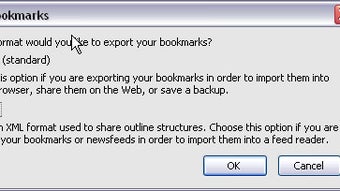
- Import Bookmarks: Use File → Import → Bookmarks to bring in favorites from other browsers.
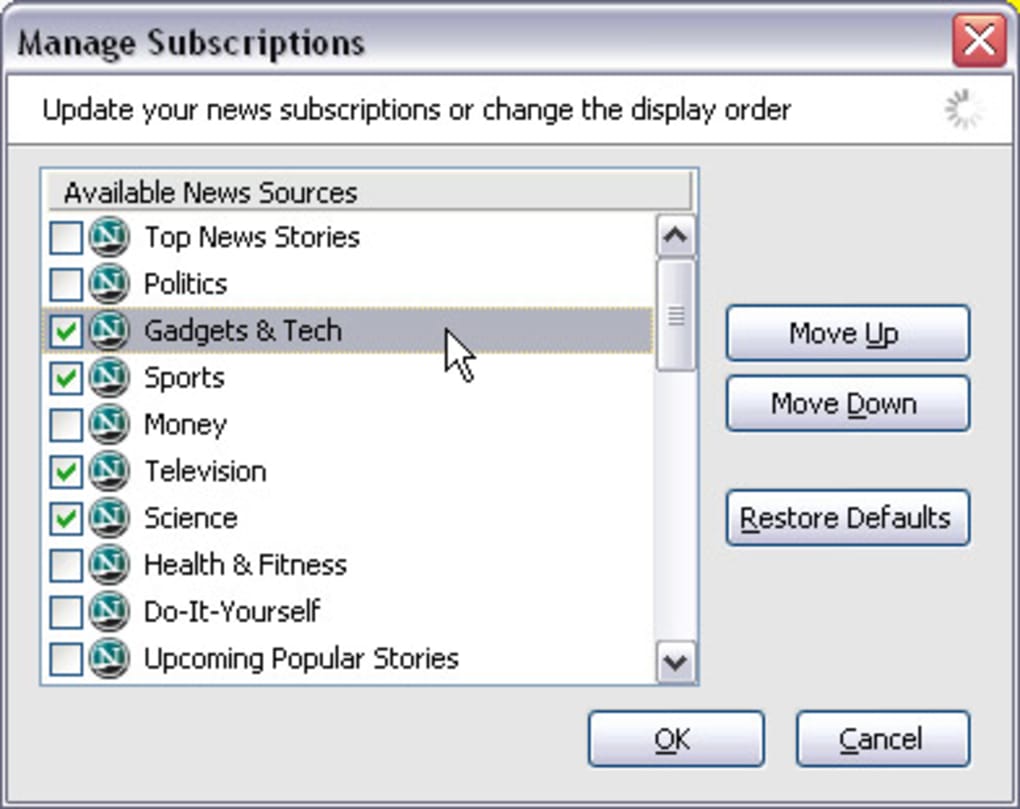
- Enable/Disable Extensions: Visit Tools → Add‑Ons to browse available extensions and toggle them on or off.
- Adjust Security Settings: Under Tools → Options → Security, you can configure cookie handling, pop‑up blocking, and SSL certificates.
Because Netscape is built for older Windows versions, it runs efficiently on machines with as little as 512 MB RAM. The browser’s lightweight nature also means it consumes fewer CPU cycles, extending battery life on laptops. For users who need to browse legacy web applications that rely on older HTML standards, Netscape’s rendering engine often provides better compatibility than newer, standards‑heavy browsers.
Compatibility, Pros & Cons
Netscape is compatible with Windows 98 SE, Windows ME, Windows 2000, Windows XP, Windows Vista, Windows 7, and later 64‑bit editions. Although the installer is a 32‑bit package, it runs smoothly on modern 64‑bit Windows through built‑in compatibility layers.
Pros
- Very small download size and minimal disk footprint.
- Fast load times on older hardware.
- Classic UI that many long‑time internet users find comforting.
- Secure SSL/TLS support despite its age.
- Low memory consumption compared with Chrome or Edge.
Cons
- No official support or updates beyond the 9.x branch (last update 2011).
- Limited extension ecosystem compared with modern browsers.
- English‑only interface; no built‑in localization.
- Missing newer web standards such as WebGL, Service Workers, and advanced HTML5 APIs.
- Cannot be set as the default browser on some newer Windows versions without registry tweaks.
Frequently Asked Questions
Is Netscape still safe to use on the modern internet?
While Netscape’s core engine is dated, it still supports current SSL/TLS encryption, which protects data transmitted over HTTPS. However, the browser lacks many modern security features like sandboxing and advanced phishing protection, so it is best used for low‑risk browsing or on legacy systems.
Can Netscape run on Windows 10 or Windows 11?
Yes. Netscape runs in compatibility mode on Windows 10 and Windows 11. You may need to right‑click the executable, select “Properties → Compatibility,” and enable “Run this program in compatibility mode for Windows 7” to ensure smooth operation.
Does Netscape support modern web standards like HTML5?
Netscape 9.x implements a subset of HTML5, covering basic tags, forms, and multimedia elements. However, advanced features such as WebGL, Service Workers, and many HTML5 APIs are not supported, which may cause some newer sites to render incorrectly.
How can I import bookmarks from Chrome or Edge into Netscape?
Export your bookmarks from Chrome/Edge as an HTML file (Settings → Bookmarks → Export). Then, open Netscape, go to File → Import → Bookmarks, and select the exported HTML file. Netscape will convert the entries into its own format.
Is there a portable version of Netscape that can run from a USB drive?
An unofficial portable build exists, but it is not endorsed by the original developers. Use it at your own risk, and ensure you download it from a reputable source to avoid bundled malware.
Conclusion & Call to Action
Netscape remains a unique blend of nostalgia and practicality for users who need a lightweight, free browser that still respects modern security basics. Its tiny installation size, classic interface, and reliable performance on older Windows systems make it an excellent fallback when newer browsers feel too heavy or when you need to access legacy web applications. While it lacks the cutting‑edge features of Chrome, Edge, or Firefox, Netscape’s simplicity can be a refreshing change for anyone who values speed over flash. If you run Windows 98 SE, Windows XP, or even a modern Windows PC with limited resources, give Netscape a try – it’s free, secure, and ready to download now.
Ready to relive the early days of the web while staying secure? Download Netscape 9.0.0.6 today and experience a browser that’s both light on resources and heavy on nostalgia.
Netscape delivers a surprisingly smooth browsing experience on older hardware. Its small footprint and classic UI are major strengths, though the lack of modern extensions keeps it from being a full‑time replacement for today's mainstream browsers.







